How to Use QR Codes for Google Reviews: A Step-by-Step Guide
This practical guide shows business owners exactly how to use QR codes to systematically collect more Google reviews. Learn how to find your review link, create effective codes, place them for maximum scans, and track your success.
Step 1: Find Your Permanent Google Review Link
Before you create anything, you need the destination. This is your direct Google review link. It's not the link to your general business listing; it's a special URL that takes people straight to the "Write a Review" screen for your business.
How to Find It:
- Go to Google Business Profile and make sure you're signed in to the account that manages your business.
- Find your business in the dashboard and click on it.
- Look for the section that shows your star rating and review count. There should be a button or link that says "Get more reviews" or similar.
- Click that. Google will provide you with a unique, shortened URL (it will look something like
https://g.page/r/CxYzAbC12345/review). This is your golden ticket.
Pro Tip: Test this link on multiple devices (iPhone, Android) before you use it. Make sure it opens the Google Maps app or browser and goes directly to the review prompt for your business, not a search results page.
Summary: Your Google review link is a permanent URL found in your Google Business Profile dashboard. Always test it before building your campaign around it.
Step 2: Create Your QR Code (Free vs. Branded)
With your link in hand, it's time to create the QR code. A QR code is just a visual representation of that web link. When scanned with a phone camera, it opens the link.
Option 1: Free QR Code Generators
For a basic, functional code, free tools are perfect. Sites like QRCode Monkey, QRickit, or even Canva's QR code tool let you paste your link and download a PNG file instantly. The code will be black and white, but it will work.
Option 2: Branded QR Codes
This is where you see a real difference in scan rates. A branded QR code includes your logo in the center and uses your brand colors. Why does this matter? It builds trust. A customer is more likely to scan a code that looks official and is clearly from you, rather than a generic black-and-white square that could lead anywhere.
Tools like Beaconstac, QRCode Chimp, or the branding features in Canva allow for this customization. The cost is typically minimal (often under $20/month for a business plan).
What to Include Around the QR Code:
The code alone is not enough. Frame it with a clear call-to-action (CTA). For example:
- "Loved your meal? Scan to tell Google about it!"
- "Help us grow! Scan to review us on Google."
- "Tell us how we did. Scan for a quick review."
Common Mistake: Creating a QR code that links to your homepage instead of the direct review link. This adds friction—the customer has to then find the review button—and drastically reduces conversions.
Step 3: Strategic Placement & A/B Testing CTAs
A QR code in the wrong place is wallpaper. You need to place it where customers are happiest and have a moment to engage.
High-Impact Placement Ideas:
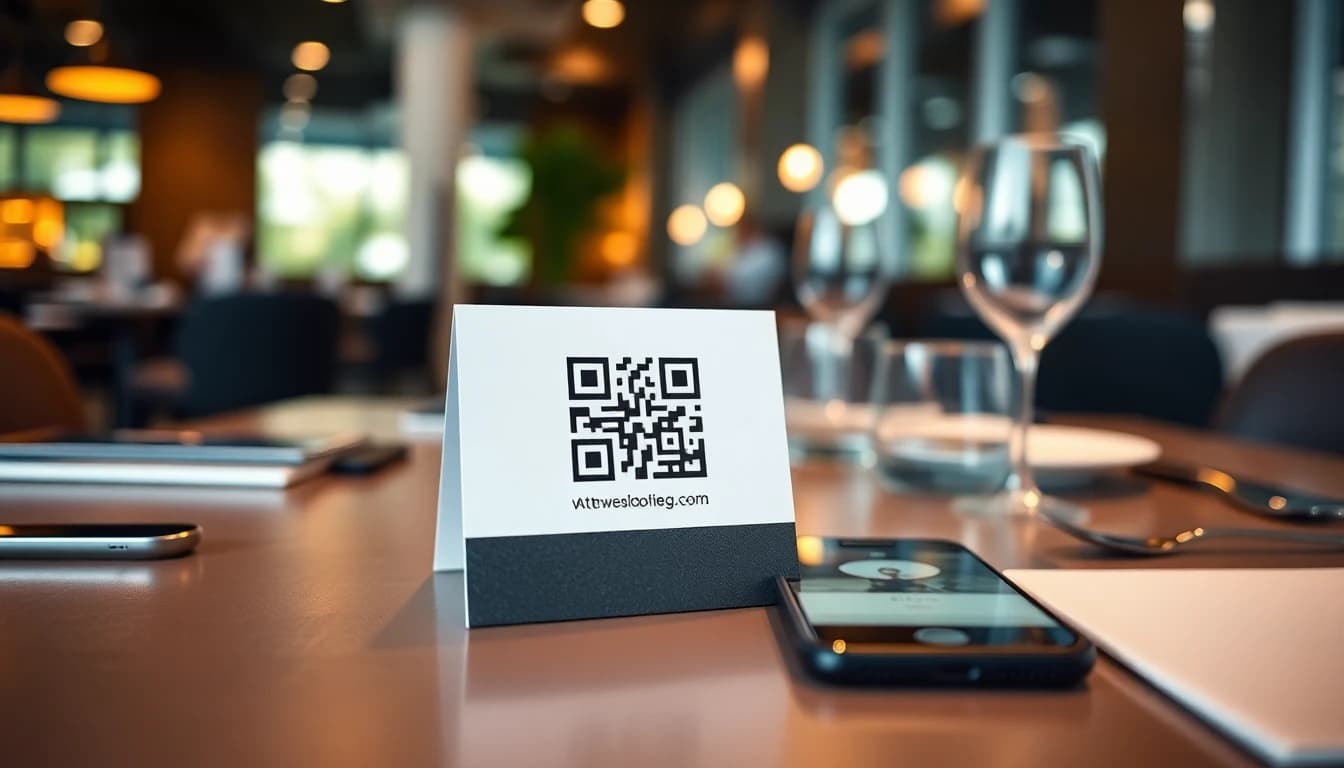
- Table Tents: The #1 spot for restaurants. It's visible throughout the meal. Place it after the main course is cleared, when satisfaction is highest.
- Receipts/Bills: Print the QR code and CTA directly on the receipt footer. Receipts tend to outperform standalone cards since every customer gets one automatically.
- Exit Signage: A small sign near the door or host stand: "On your way out? Scan to tell Google about us!"
- Packaging: For takeout or delivery, add a sticker with the QR code to the bag or box. The CTA here should be time-based: "Just enjoyed your takeout? Scan now to review!"
- Business Cards: A classic, but effective for service-based interactions or catering inquiries.
A/B Testing Your Call-to-Action:
Don't just guess what wording works. Test it. Create two versions of your table tent with different CTAs.
- Version A: "Scan to leave a review."
- Version B: "Scan to tell Google about your experience."
Run each for two weeks and track which generates more scans (you'll need a dynamic QR code with scan analytics for this, which most paid tools provide). You might find that "help us grow" resonates more with regulars, while "tell Google" works for first-time visitors.
The NFC Alternative:
For a truly high-tech, frictionless experience, consider NFC (Near Field Communication) tags. These are small stickers or cards that, when tapped with a smartphone, perform the same action as scanning a QR code—opening your review link. They can be embedded in table tops, placed on counters, or used in key cards. While more expensive upfront, they offer a "wow" factor and eliminate the minor friction of opening a camera app.
Summary: Place QR codes at key satisfaction points: tables, receipts, and exits. Test different call-to-action phrases to see what drives the most scans. NFC tags offer a more advanced, tap-based alternative.
Step 4: Measure Your Scan-to-Review Conversion Rate
Collecting scans is only half the battle. The real metric that matters is your scan-to-review conversion rate. This tells you how many people who scanned your code actually completed and posted a review.
How to Track It:
- Use a Dynamic QR Code Generator: Services that provide branded codes (like Beaconstac, Bitly, or QRCode Chimp) almost always include analytics. They'll show you total scans, unique scans, device types, and scan locations.
- Monitor Your Google Business Profile: Keep a daily or weekly log of your new review count.
- Calculate the Rate: For a given period: (Number of New Reviews) / (Number of Unique QR Scans) = Scan-to-Review Conversion Rate.
What's a Good Rate?
There's no universal benchmark worth anchoring on — conversion rates vary widely by business, placement, and audience. If only a small fraction of your scans turn into posted reviews, the friction is too high. The biggest point of friction? The blank text box. Asking a happy but busy customer to compose thoughtful prose is a big ask.
This is where AI-assisted review drafting changes the game. A platform like OwnCrew Customer Ops addresses this directly. After a customer scans your QR code, they're taken to a simple page where they can tap a few tags describing their experience (e.g., "Great Service," "Amazing Food," "Cozy Atmosphere"). An editable draft is generated from only those tags — good and bad. The customer reworks it, then copies the text and posts it on Google themselves. This process tends to meaningfully lift conversion rates by removing the mental effort of writing.
For a deeper dive on building a systematic review strategy, see our guide on getting from our 90-day restaurant review plan.
Summary: Tracking scans alone is not enough. Calculate your scan-to-review conversion rate to identify friction. The biggest barrier is the blank text box, which can be solved with AI-assisted review drafting to boost completion rates.
Step 5: Optimize & Scale Your System
Once you have a working QR code campaign, it's time to optimize and make it a core part of your operations.
Integrate with Staff Training: Train your servers to gently point out the QR code on the table tent or receipt. A simple, "If you had a great time tonight, we'd be so grateful if you scanned that code to leave us a review on Google," makes a huge difference.
Leverage Review Analytics: Use your Google Business Profile dashboard or a review management tool to understand the sentiment. Are people mentioning specific staff, dishes, or aspects of ambiance? Use this feedback internally to celebrate wins and address minor issues before they become trends in reviews. Understanding this impact is crucial; our data study on how Google reviews affect local SEO rankings breaks down the direct correlation.
Create a Review Response Routine: New reviews are an opportunity. Positive reviews deserve a thankful, personalized response. Negative reviews require a careful, professional reply to demonstrate you care. This process can be streamlined. OwnCrew Customer Ops, for example, includes an admin dashboard that not only shows review analytics but also provides AI-powered suggestions for replying to both positive and negative feedback, saving you time while maintaining a personal touch. For a complete framework on handling criticism, our negative review response guide is essential reading.
Scale with Multiple Codes: Consider creating unique QR codes for different purposes or locations. One for dine-in tables, one for takeout bags, one for your catering menu. This lets you see which part of your business generates the most engaged feedback.
Legal Compliance: Always remember that you cannot offer incentives for reviews if they are contingent on the review being positive. Google's policies strictly prohibit this. You can ask for reviews, and you can make it easy, but you cannot trade discounts, free items, or entries into a contest for 5-star feedback.
Summary: Integrate QR codes into staff training, use review analytics for business insights, establish a response routine, and scale with multiple codes. Always comply with Google's policies by not offering incentives for positive reviews.
Putting It All Together
Using QR codes for Google reviews isn't about a single trick. It's about building a low-friction system that meets customers at their moment of highest satisfaction and guides them to an action that benefits your business.
Start with your direct review link. Create a branded QR code that customers trust. Place it strategically and test your messaging. Most importantly, measure your conversion rate and work to reduce the friction of writing. Most importantly, measure your conversion rate and work to reduce the friction of writing. Tools that assist with review drafting can meaningfully lift how many scans turn into posted reviews, accelerating your review growth.
More reviews, especially positive ones, improve your local search visibility, build social proof, and directly influence buying decisions. To understand the full financial return, our analysis on review management ROI provides concrete numbers. For a comprehensive look at managing your entire online reputation, our complete guide to Google review management covers all the bases.
The goal is to make leaving a great review as easy as enjoying a great meal. A QR code system, thoughtfully implemented, does exactly that.
References
- [1]Google Business Profile Help: Reviews — Google
- [2]Google Business Profile: Edit Your Profile — Google
- [3]Online Reviews Statistics and Trends — ReviewTrackers
- [4]Online Review Statistics — Podium
- [5]LocalBusiness Schema Type — Schema.org
- [6]Review Schema Type — Schema.org
Know what needs attention.
OwnCrew Customer Ops brings customer feedback from every location into one place, shows you what keeps coming up, and tracks whether the fix worked.
Start 14-day free trial